
Set up the DevTools panel
Add two plugins and a Lit panel appears inside Vite DevTools with a timeline, a component tree and an update explainer. Dev-only and off by default.
This is the panel itself, inspecting three playground components above it, running in this page with no dev server:
Install @vitejs/devtools
Section titled “Install @vitejs/devtools”Vite DevTools is the browser overlay from @vitejs/devtools that hosts plugin
panels. The Lit panel is one of those panels, so the overlay has to be there
first.
npm install -D @vitejs/devtoolsEnable the panel
Section titled “Enable the panel”timeline: true injects the recording runtime into the page. DevTools()
provides the host the panel docks into. You need both.
import {defineConfig} from 'vite';import {litPlugin} from '@oddsquad/lit-devtools/vite';import {DevTools} from '@vitejs/devtools';
export default defineConfig({  plugins: [litPlugin({timeline: true, sourceOverlay: true}), DevTools()],});
sourceOverlay: true is optional. The Components tab needs it to pick an
element by pointing at it on the page.
Prefer to leave the config alone? Both options also read from the environment,
so a personal .env.local works just as well.
LIT_PLUGIN_TIMELINE=trueLIT_PLUGIN_SOURCE_OVERLAY=trueWithout Vite DevTools
Section titled “Without Vite DevTools”With timeline: true and no DevTools(), the dev server serves the panel on
its own at /__lit/, and prints the address under the ones Vite prints:
➜ Local: http://localhost:5173/ ➜ Lit DevTools: http://localhost:5173/__lit/Open it in a tab next to the app. The first time, it asks for a one-time code
that the dev server prints in the terminal, the same check Vite DevTools makes
before its overlay connects; the browser remembers it after that. Set
VITE_DEVTOOLS_DISABLE_CLIENT_AUTH=true to skip the check on a machine only
you can reach. Everything else in this guide works the same, except that there
is no dock to bring forward: a pick on the page selects the element in the
open panel, but the panel’s tab stays where it is.
In a server that is not Vite
Section titled “In a server that is not Vite”A server without Vite can host the panel itself, on its own origin, without
the lit-devtools dev process. createLitDevtools() returns one web-standard
request handler for the panel, the page script and the RPC; mount it on a
catch-all route and load the script first in each page’s <head>:
import {createLitDevtools} from '@oddsquad/lit-devtools/devframe';import {Elysia} from 'elysia';
const devtools = createLitDevtools();
new Elysia()  .all(`${devtools.base}*`, ({request}) => devtools.handler(request))  .get('/', () => page(`<script src="${devtools.script}"></script>`))  .listen({hostname: 'localhost', port: 3000});
The handler takes a Request and returns a Response, so the same two lines
fit Hono, Bun.serve, a SvelteKit +server.ts or a Next.js route handler.
The panel is docked in the page: a Lit button in the bottom-right corner opens
it in a drawer along the bottom, which you can drag taller, and picking an
element opens it there. The page remembers whether the drawer was open and how
tall. It is also its own page at /__lit-devtools/; pass base to move it,
or dock: false to leave the page alone.
- Auth. On by default: the page asks for a one-time code that the server
prints, once per browser. In a frame, such as a cloud IDE’s preview, the
browser cannot prompt, so the dock asks instead: its button carries a dot,
and the drawer holds a field for the code.
createLitDevtools({auth: false})skips the code; only do that on a server bound to loopback, since the RPC can open files in your editor. - Transport. The RPC runs over a WebSocket that devframe serves on a spare
local port of its own, so the host needs no upgrade wiring. The browser
dials it on the page’s hostname: pass
host: '127.0.0.1'if your pages are on127.0.0.1rather thanlocalhost. Behind a proxy or tunnel that exposes one port only, passtransport: 'sse'to keep the RPC on the host’s origin. Over HTTP/1.1 each SSE stream holds one of the browser’s six connections per host, and a docked page holds two, so stay at two tabs or serve over HTTP/2. - Cloud previews and tunnels. Only loopback pages may connect by default.
Name the others in
allowedOrigins; a*in the host stands for any subdomain, so['https://*.csb.app']admits every CodeSandbox preview. Keepauthon there: the preview is reachable by more than your machine. - Limits. As with
lit-devtools dev: the tree, inspector and timeline work, component locations come from the page’s sourcemaps, and HMR patching needs Vite. The Elysia example runs it this way.
Open it and record ten seconds
Section titled “Open it and record ten seconds”Start the dev server, open the page, and open the Vite DevTools overlay. Lit appears in the dock list with its own icon. The panel follows one page at a time: opening the app in a second tab switches to that tab and says so.
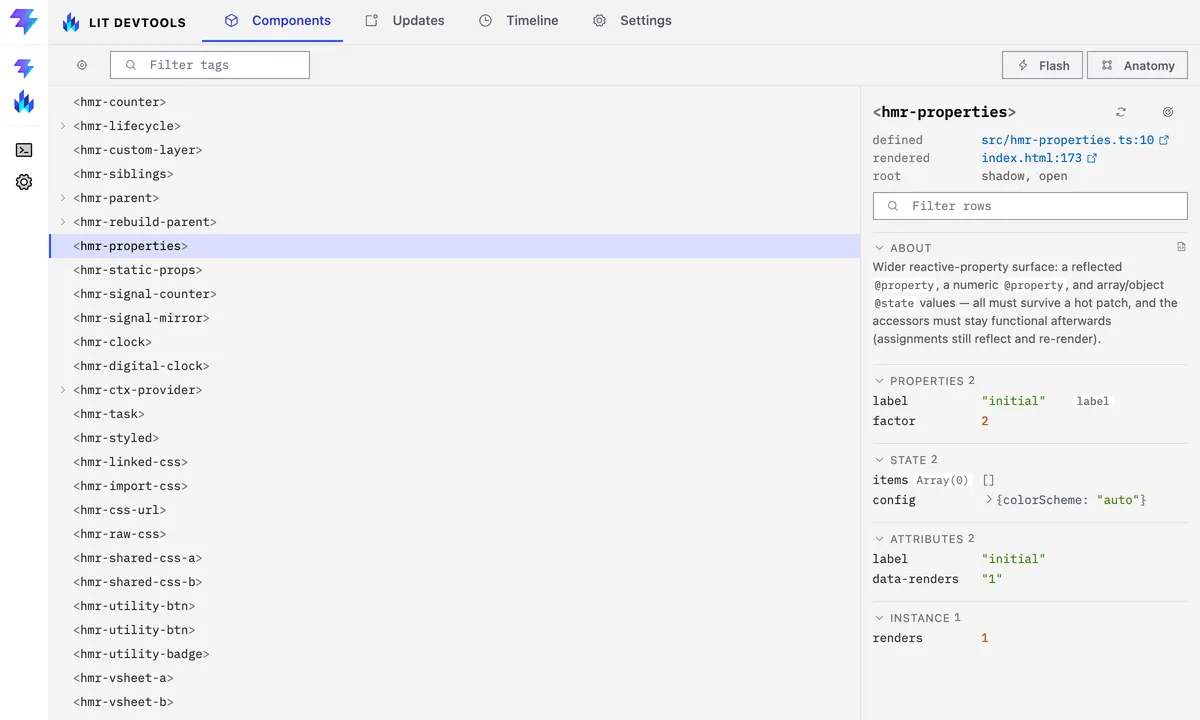
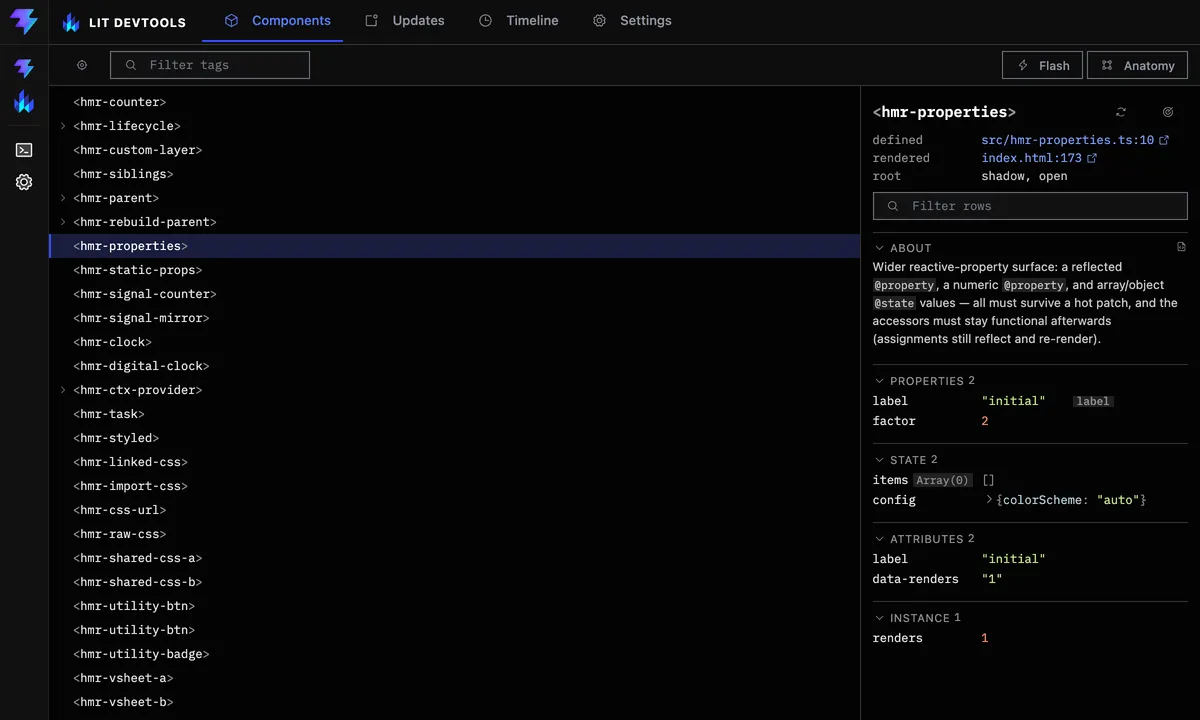
The panel opens on Components and carries four tabs.
- Components lists every Lit element on the page with its reactive state, and needs no recording. See Inspect live components.
- Updates answers which component re-rendered, how often, and why. See Find out why a component re-rendered.
- Timeline records lifecycle, render and input events in order. Press ▶ Record, click around for ten seconds, then press ⏹ Stop. See Record and read the timeline.
- Settings shows the resolved configuration and overrides part of it live.
Change settings live
Section titled “Change settings live”The Settings tab shows what the plugin actually resolved: litPlugin()
options on top of LIT_PLUGIN_* environment variables on top of the defaults.
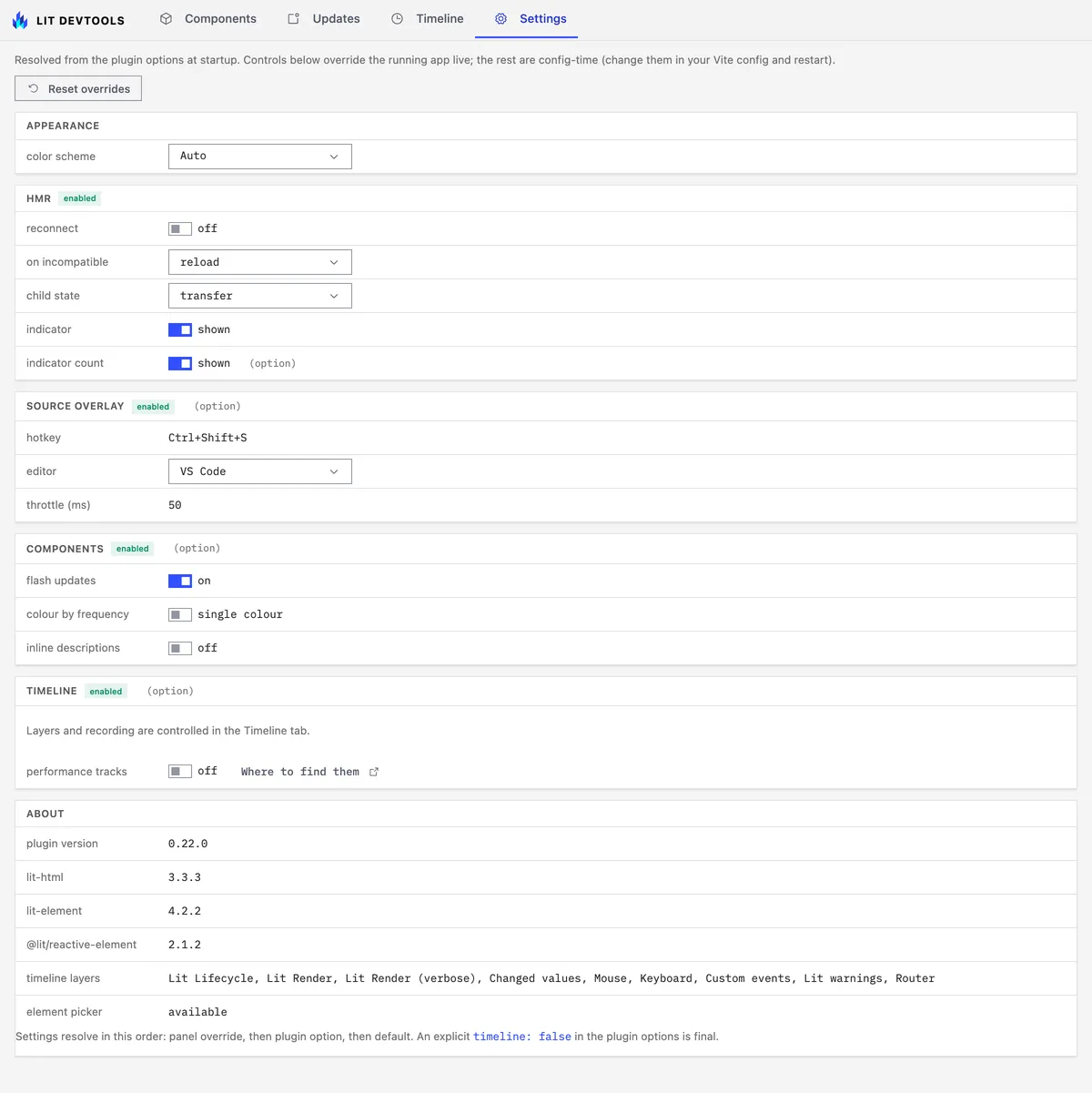
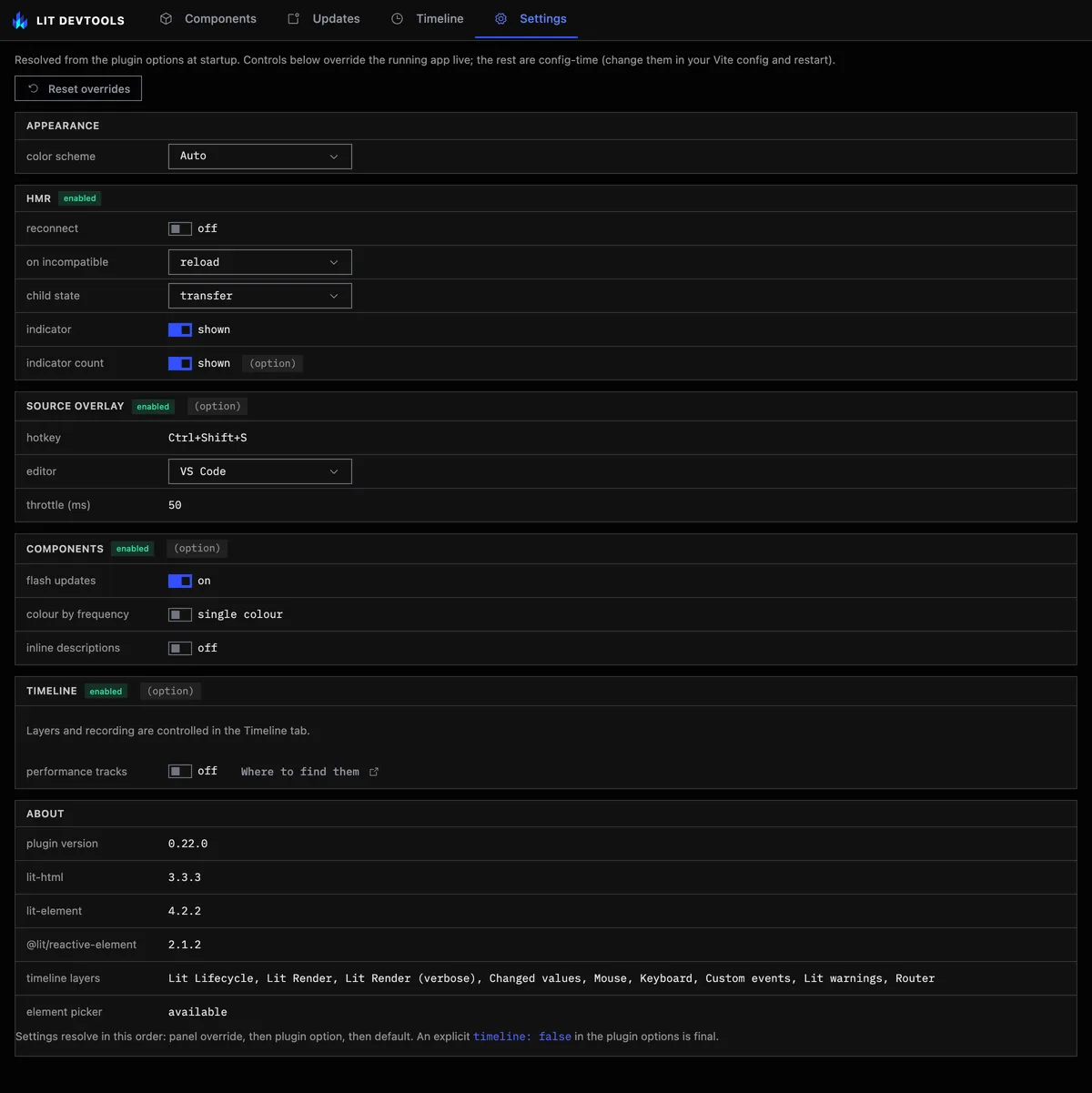
The HMR behaviour, the source-overlay editor and the Components tab’s own
toggles are editable there. A change reaches the running page at once, with no
dev-server restart and no edit to vite.config.ts. Reset overrides drops your
overrides and puts the resolved values back.
A value you set carries its origin in parentheses: (option) for
litPlugin(), (env) for a LIT_PLUGIN_* variable. So Zed (env) means the
editor came from your .env. A value with neither is the built-in default.
The same goes for each section’s enabled or disabled pill, so HMR disabled (option) means litPlugin({hmr: false}) turned it off. Open a dropdown and the configured choice says where it came from, default
included. When env or an option set it, the built-in default is tagged
default too, so warn env sits beside reload default. Hovering a
setting’s name explains it and gives its default.
An overridden row names
the value it replaced, such as env: Zed, and the small × beside it
resets just that row. A custom editor object from litPlugin()
shows as Custom (option) and can’t be switched from the panel.
If the value underneath an override has changed since you made it, say you
switched the editor to Cursor and .env now says Zed, the row adds a line:
Config changed since you overrode this: was VS Code, now Zed. Reset drops
the override so the new value applies. Keep leaves it in place and stops
the reminder until the config changes again. Overrides saved before this
existed have nothing to compare against, so they never show it.
A setting whose feature is off at config time stays read-only. Its runtime was never injected into the page, so there is nothing there to change.
Your overrides and the panel’s light/dark choice persist per developer and never touch the repository; DevTools architecture explains where they live and why there are two copies.